Documentation for Substance 3D Painter is now available on Experience League. After March 14th, HelpX pages will automatically redirect to the equivalent Experience League page.
Refer to the FAQ for more information about which documentation is affected.
Last updated on
Jul 13, 2023

- Substance 3D home
- Home
- Getting Started
- Getting Started overview
- Activation and licenses
- System requirements
- Project creation
- Export
- Export overview
- Export window
- Output templates
- Export overview
- Glossary
- Getting Started overview
- Interface
- Interface overview
- Assets
- Substance 3D Assets
- Color picker
- Display settings
- History
- Layer stack
- Main menu
- Project configuration
- Properties
- Settings
- Shader settings
- Texture Set
- Toolbars
- Viewport
- Miscellaneous
- Painting
- Painting overview
- Paint tools
- Path tools
- Path tool overview
- Paint along path
- Ribbon path
- Filled path
- Erase along path
- Smudge along path
- Straight line
- Lazy mouse
- Symmetry
- Fill projections
- Presets
- Presets overview
- Creating and saving presets
- Creating particles presets
- Photoshop brush presets
- Dynamic strokes
- Advanced channel painting
- Vector graphic (.svg & .ai)
- Text resource
- Effects
- Baking
- Content
- Creating custom effects
- Importing assets
- Creating custom effects
- Features
- Automatic resource update
- Automatic UV Unwrapping
- Physical size
- Smart Materials and Masks
- Subsurface Scattering
- Dynamic Material Layering
- UV Reprojection
- UV Tiles
- Color Management
- Post Processing
- Iray Renderer
- Plugins
- Sparse Virtual Textures
- Custom Shaders
- SpaceMouse® by 3Dconnexion
- Universal Scene Description (USD)
- Send to
- Technical Support
- Performance Guidelines
- Configuring Pens and Tablets
- Exporting the log file
- Exporting a DXDiag
- Technical issues
- GPU Issues
- Crash when working with overclocked GPU
- Forcing the external GPU on Mac OS
- GPU drivers compatibility
- GPU drivers crash with long computations (TDR crash)
- GPU has outdated drivers
- GPU is not recognized
- GPU is not recognized and is mentionned as GDI Generic
- Issues with Nvidia GPUs on recent Mac OS versions
- Multi/Bi-GPU
- Running on integrated GPU
- Painter doesn't start on the right GPU
- Startup Issues
- Rendering Issues
- Stability Issues
- Miscellaneous Issues
- GPU Issues
- Workflow Issues
- Export Issues
- Tools Issues
- Project Issues
- Library Issues
- Viewport Issues
- Plugins Issues
- License Issues
- Pipeline and integration
- Installation and preferences
- Configuration
- Resource management
- Scripting and development
- Scripts and plugins
- Shader API Reference
- Shader API overview
- Changelog - Shader API
- Libraries - Shader API
- Lib Alpha - Shader API
- Lib Bayer - Shader API
- Lib Defines - Shader API
- Lib Emissive - Shader API
- Lib Env - Shader API
- Lib Normal - Shader API
- Lib PBR - Shader API
- Lib PBR Aniso - Shader API
- Lib Pom - Shader API
- Lib Random - Shader API
- Lib Sampler - Shader API
- Lib Sparse - Shader API
- Lib SSS - Shader API
- Lib Utils - Shader API
- Lib Vectors - Shader API
- Parameters - Shader API
- Shaders - Shader API
- Release notes
- Release notes overview
- All Changes
- Version 11.1
- Version 11.0
- Version 10.1
- Known issues
- Old versions
- Version 10.0
- Version 9.1
- Version 9.0
- Version 8.3
- Version 8.2
- Version 8.1
- Version 7.4
- Version 7.3
- Version 7.2
- Version 2021.1 (7.1.0)
- Version 2020.2 (6.2.0)
- Version 2020.1 (6.1.0)
- Version 2019.3
- Version 2019.2
- Version 2019.1
- Version 2018.3
- Version 2018.2
- Version 2018.1
- Version 2017.4
- Version 2017.3
- Version 2017.2
- Version 2017.1
- Version 2.6
- Version 2.5
- Version 2.4
- Version 2.3
- Version 2.2
Smart Materials and Masks
Substance 3D Painter supports the use of advanced layer presets . These presets can be used to quickly share across Texture Sets or Projects a similar texturing process while keeping the results different, adapted to the mesh topology .
Note
Note that once added in the layer stack, there is no way to retrieve which smart material was used. In the case a smart material need to updated, the process will have to be done manually.
However individual resources can be updated with the Resources Updater .
How to use Smart Materials/Masks ?
Smart Materials can be used anywhere in the layer stack, while smart masks can only be used in the effect stack.
To know more about the differences, see : Layer stack and Effects
Adding a Smart Material
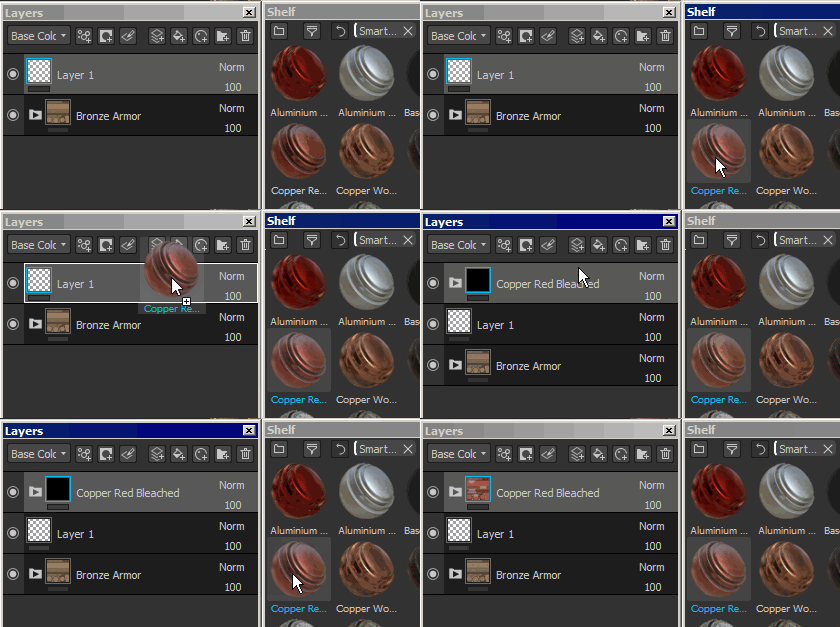
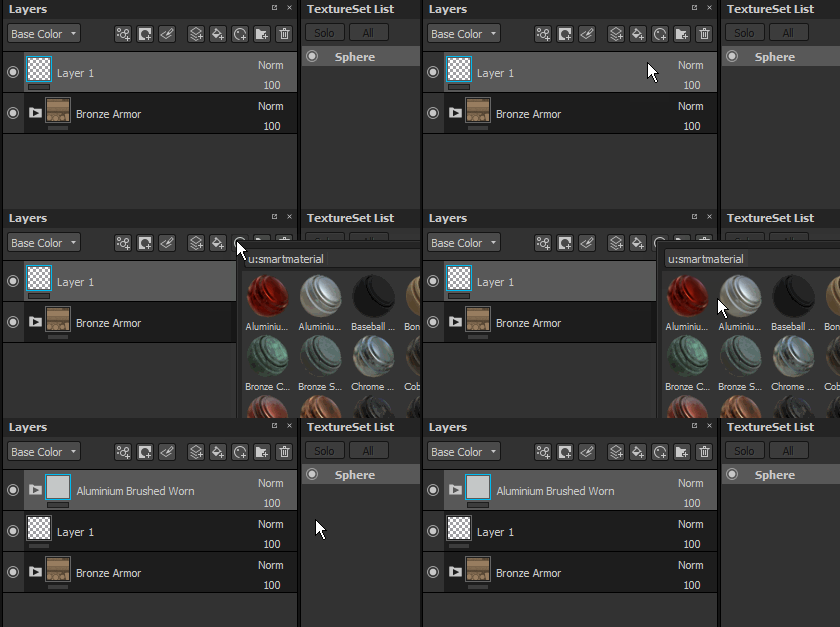
Smart Materials can be added in two different ways :
-
By drag and dropping a smart materials from the shelf into the layer stack :
-
By clicking on the Smart Material button to open a mini-shelf :
Adding a Smart Mask
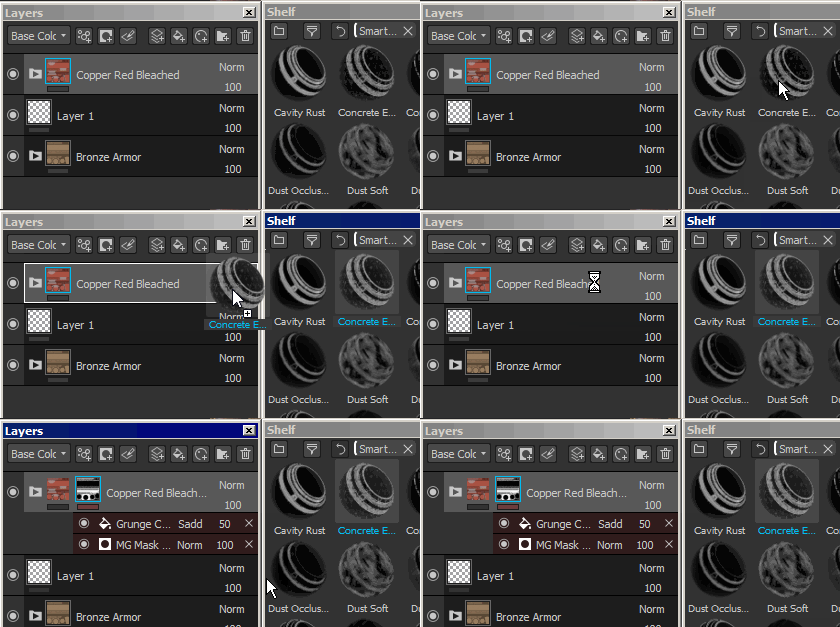
Because Smart Masks are presets of effects, they can therefor only be added to effect stacks (for mask specifically).
-
To add a Smart Masks, simply drag and drop one from the Shelf onto the target layer :
-
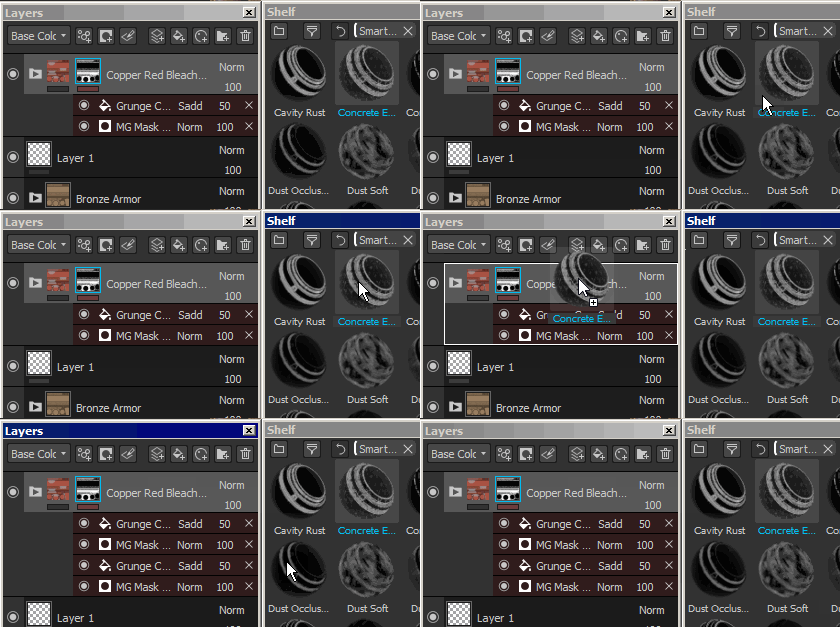
Drag and dropping multiple Smart Masks will accumulate them :
-
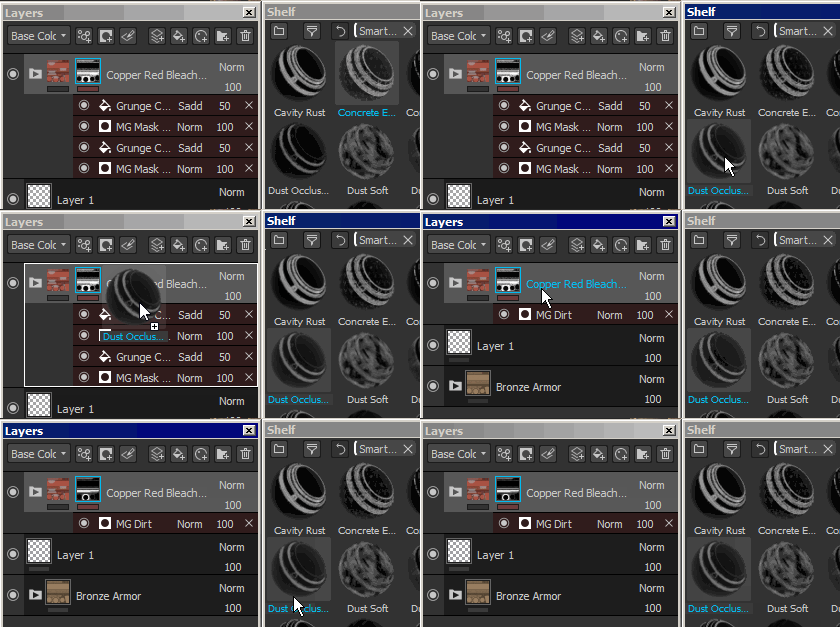
It is possible however to replace the whole effect stack by pressing CTRL during the drag and drop :
How to create Smart Materials/Masks ?
To create a Smart Materials, a folder is required.
The content of the Smart Materials will be contained in the folder. Then simply right-click on the folder and select " Create smart material ". The Smart Material will then be added to the current shelf and will be named accoridng to the folder selected.

To create a Smart Mask, simply right-click over a layer and choose " Create smart mask ".

How to share/retrieve a smart material/mask ?
The presets are saved on the disk and can be retrieved from their dedicated folder.
To find the shelf location , see : Adding content on the hard drive .
Then anybody can simply import the file into their Substance 3D Painter shelf to use the preset.
