
Last updated on
Jul 25, 2024
Canvas tools
Adobe Dimension makes it easy to view your cameras in a 'canvas' context - letting you see the exact pixel size it will render at and zoom in and out.
To use the canvas tools
- Activate a camera in the scene panel or viewport control bar.
- Activate a canvas tool on the toolbar.
- Click and drag in the viewport.
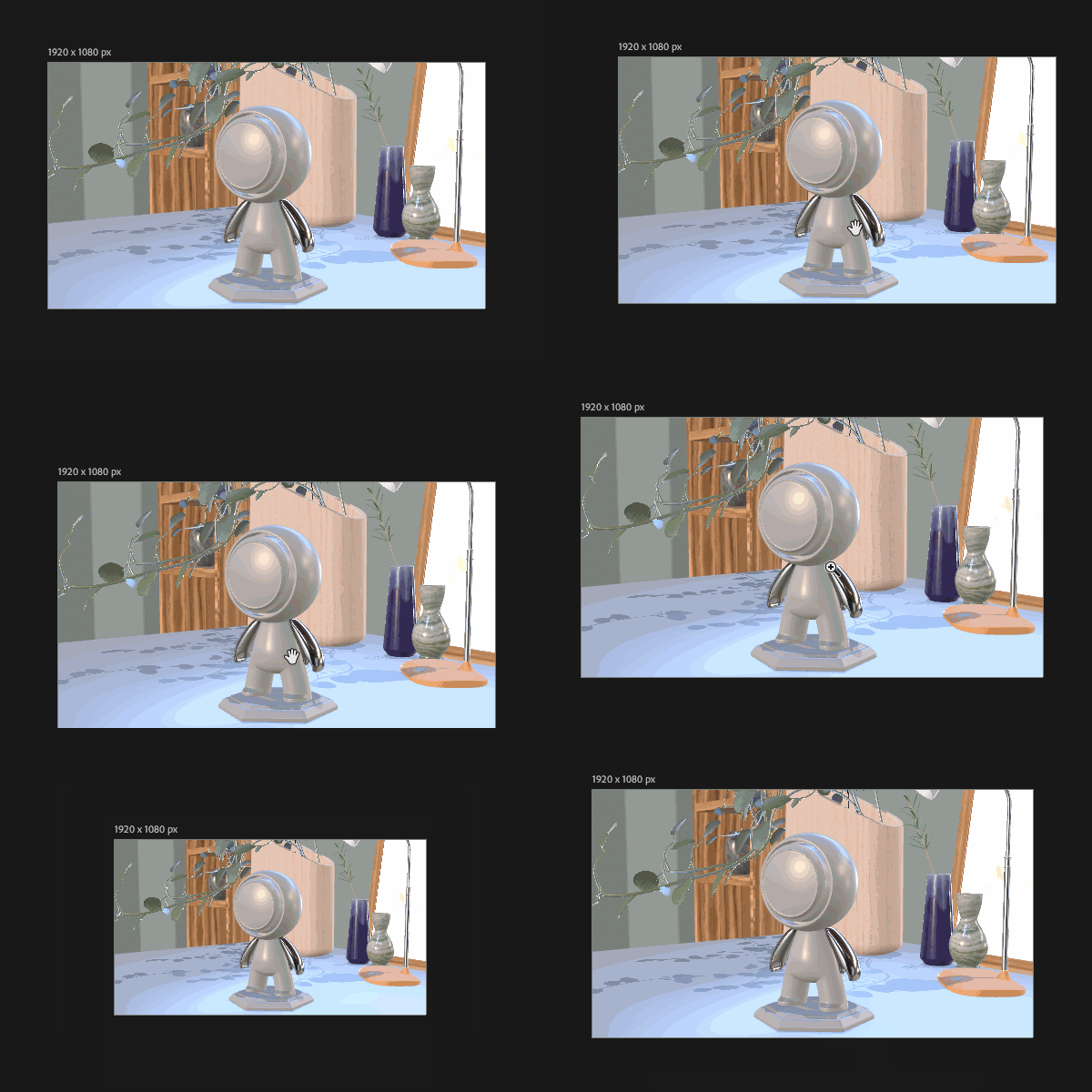
Name |
Description |
Shortcut |
|---|---|---|
Zoom |
Zoom in and out on the viewport. |
Z |
Hand |
Move the viewport up, down, left, and right. |
H |
In addition to the canvas tools you can use the canvas zoom control in the viewport control bar to set exact sizes or use the following shortcuts to navigate as well:
Description |
Mac shortcut | Win shortcut |
|---|---|---|
Zoom to fit viewport |
Cmd 0 |
Ctrl 0 |
| Zoom to 100% | Cmd 1 | Ctrl 1 |
| Zoom in | Cmd = | Ctrl = |
| Zoom out | Cmd - | Ctrl - |

Design stunning 3D visuals with Dimension
Create photorealistic 3D images for product mockups, branded content, and more.
