Select a track in the Editor or Mixer panel.
Last updated on
Dec 20, 2021
Learn how to manage, organize, and adjust tracks using the Multitrack Editor in Adobe Audition.
Multitrack sessions can include four different types of tracks:
A session supports one Video Track
 with a single imported clip at a time, which you can preview by selecting Window > Video.
Audio Tracks
 contain imported or session-recorded clips and offer extensive controls for input and output selection, effects and EQ, routing to sends and buses, and mix automation.
Bus tracks
 combine outputs from multiple audio tracks or sends, letting you control them together.
The Mix Track
 , last in each session, combines outputs from multiple tracks and buses and lets you control them with a single fader.
Learn more about routing audio to buses, sends, and the Mix track.
Track configuration
Multitrack sessions support unlimited mono, stereo, and 5.1 tracks. Select a configuration that matches your final output:
Mono: Single-channel recordings (for example, one microphone)
Stereo: Standard two-channel playback
5.1 surround: Multi-channel audio for immersive sound

A. Mono B. Stereo C. 5.1
You can also convert a waveform between surround, stereo, and mono.
Add or delete tracks
Note
A multitrack session supports only one video track, which Adobe Audition always inserts at the top of the Editor panel.
Add track
To add a track:
- Select Multitrack > Tracks > Add [Track Type].
- Select a track, then insert a new one above it.
Add multiple tracks
To add multiple tracks:
- Select Multitrack > Add Tracks.
- Specify the type and number of tracks you would like to add.
Delete track
To delete a track:
- Choose the track you would like to delete.
- Select Multitrack > Track > Delete Selected Track.
Delete empty tracks
To delete all empty tracks at once, select Multitrack > Delete empty tracks.
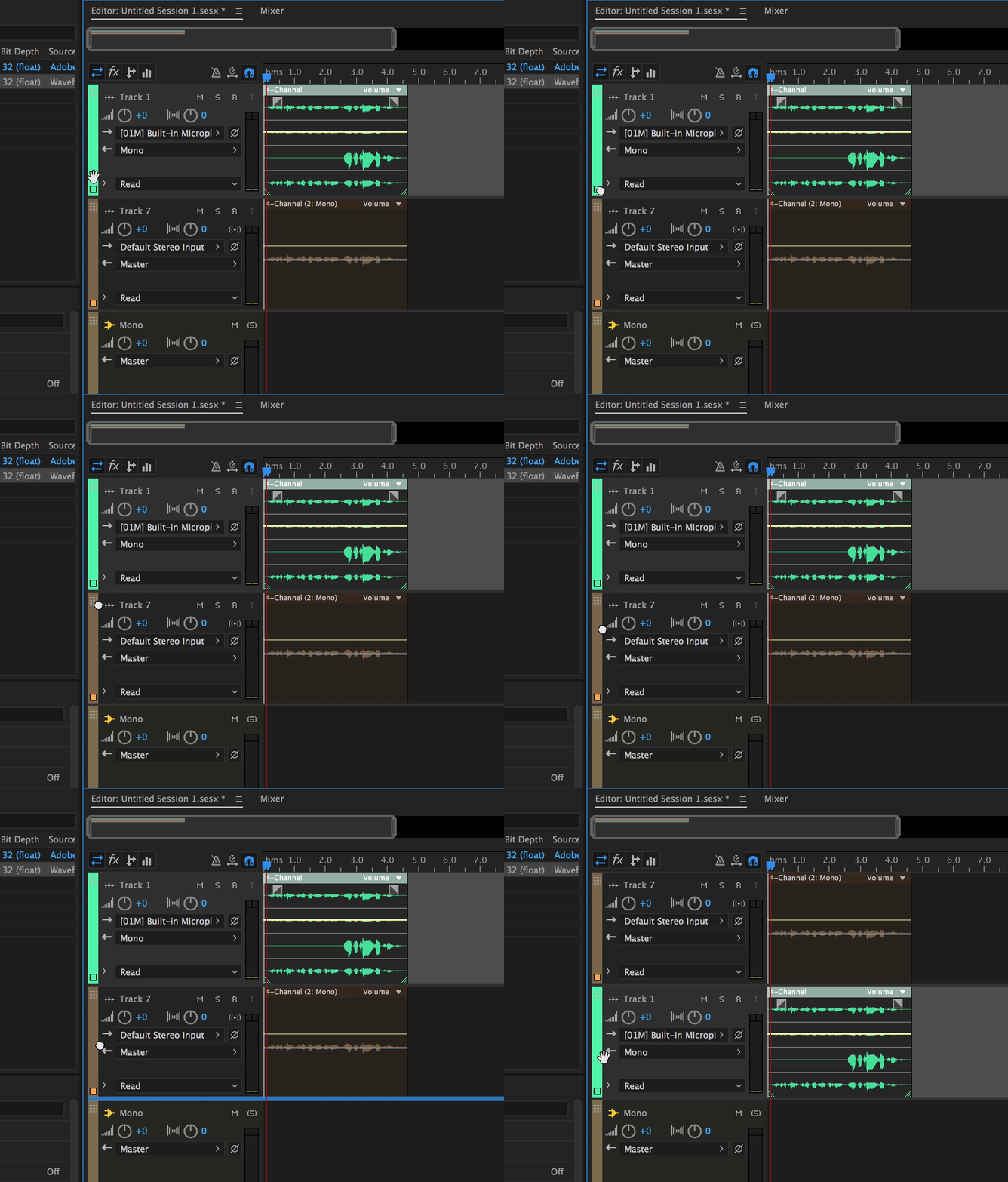
Rename and organize tracks
You can name tracks to better identify them, or move them to display related tracks together.
Rename a track
- In the Editor or Mixer panel, type the name in the text box.

Move a track
- Drag the track up or down in the Editor panel.
- Drag the track left or right in the Mixer panel.
Show or hide tracks
While working on the Multitrack editor, you can use the Tracks panel to customize tracks. You can use the panel to choose the tracks you want to see or hide while working on a project.
- To open the Tracks panel, select Windows > Tracks.

Use Track Visibility to see the available presets for tracks. To open Track Visibility options, do one of the following:
- To open Track Visibility from the Tracks panel, select the Tracks pop-up window > Track Visibility.
- To open Track Visibility from the Editor panel, select the Editor pop-up window > Track Visibility.
- To open Track Visibility from the main menu, select Multitrack > Track Visibility.

To save custom presets, select Track Visibility > Save > Preset. You can save up to nine presets. You can hide tracks using the eye icon.  indicates that the track is visible, and
  indicates that the track is hidden.
Vertically zoom tracks
When you use the vertical Zoom options in the lower right of the Editor panel, all tracks zoom simultaneously. If a session contains many tracks, it is better to zoom them individually.
- In the track controls, drag the top or bottom border of the track up or down.
Note
To quickly zoom all tracks, roll the mouse wheel over the track controls. To horizontally resize all track controls, drag the right border.
Note
Learn more about how to Zoom audio in the Editor panel.
Mute and solo tracks
You can mute solo tracks to hear them separately from the rest of a mix. Conversely, you can mute tracks to silence them in a mix.
- To mute a track, click the Mute button
 in the Editor or Mixer panels.
 - To solo a track, click the Solo button
 in the Editor or Mixer panels. To automatically remove other tracks from Solo mode, Ctrl‑click (Windows) or Command-click (macOS).
 - To remove other tracks from Solo mode by default, select Track Solo: Exclusive in the Multitrack section of the Preferences dialog box. Regardless of this setting, when you solo a bus, assigned tracks are always placed in Solo mode.
Apply an identical setting to all tracks
To increase your efficiency, you can quickly apply several settings to an entire session.
- Hold Ctrl+Shift (Windows) or Command+Shift (macOS). Then select an Input, Output, Mute, Solo, Arm For Record, or Monitor Input setting for any track.
Set track output volume
You can set and adjust individual track volumes from the Editor and Mixer panels.
In the Editor panel, drag the Volume knob
 . To change settings in large increments, hold down the Shift key. To change settings in small increments, hold down Ctrl (Windows) or Command (macOS).
 In the Mixer, drag the track fader or click above or below to move incrementally to the next tick mark. To move to a specific point, Alt‑click (Windows) or Option-click (macOS) above or below the fader.
Note
To return knobs and faders to zero (unity gain), Alt‑click (Windows) or Option-click (macOS) directly on them.
Pan tracks in stereo
- To pan tracks in stereo, drag the Pan knob
 in the Editor or Mixer panel.
 - To change settings in large increments, hold down the Shift key. To change settings in small increments, hold down Ctrl (Windows) or Command (macOS).
Note
The Multitrack Editor pans using an equal-power method, which maintains consistent perceived loudness by slightly boosting one channel over the other. To change the boost amount, or switch to logarithmic panning (which simply attenuates one channel), change Panning Mode in the Multitrack preferences.
Duplicate tracks
Duplicate a track to copy all clips, effects, EQ, and automation, making it easy to test and compare changes.
Select Multitrack > Track > Duplicate Selected Track.

Edit, mix, and record with Audition
Create and edit audio for podcasts, music, film, and more.
