
Select a clip in the timeline, open the Color panel, and click a preset.
上次更新日期:
2025年9月4日
Learn how to apply Premiere Rush's color presets or create your own presets, and change the background color of your video.
注释
随着下一代 Adobe Premiere 移动应用程序的推出,我们决定停用 Adobe Premiere Rush。自 2025 年 9 月 30 日起,Premiere Rush 将不再通过 Adobe.com 提供。作为替代方案,我们推荐 iPhone 版 Premiere;Android 版本目前也在开发之中。要了解更多信息,请访问 Premiere Rush 停用常见问题。
Adjust a clip's color
You can adjust a clip's color in multiple ways:
- Apply a color preset using one of the presets in the Color panel.
- Manually adjust exposure, contrast, highlights, shadows, temperature, tint, vibrance, saturation, and other color controls in the Edit tab of the Color panel.
- Do both. Apply a color preset and then refine its color properties in the Edit tab of the Color panel.
Apply a color preset

Adjust the intensity of the preset by using the Intensity slider, at the bottom of the Presets tab.
To further edit the color properties, double-click the preset or click the Edit tab. Adjust the different color controls to achieve the effect you want.
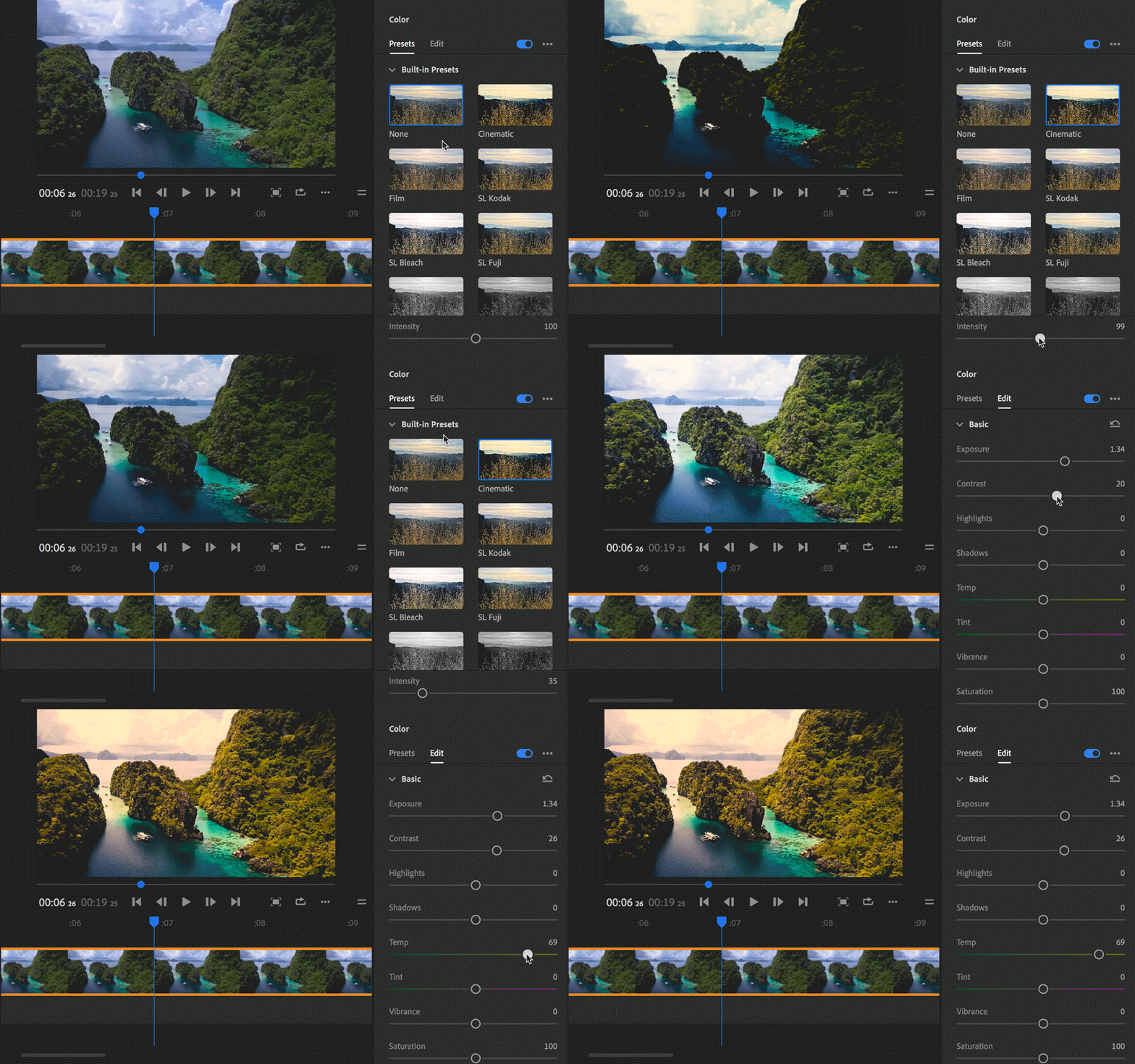
Basic:
- Exposure: Adjust the exposure of the clip.
- Contrast: Adjust the contrast of the clip.
- Highlights: Adjust the brightness of the light areas in the clip.
- Shadows: Adjust the darkness of the darker areas in the clip.
- Temperature: Fine-tune the white balance by moving the slider to the left to make the video appear cooler, and to the right for warmer colors.
- Tint: Fine-tune the white balance by moving the slider to the left to add a green tint, and move it to the right to add a magenta tint.
- Vibrance: Adjust the intensity of the more muted colors in the clip with less effect on the higher-saturated colors.
- Saturation: Adjust the saturation of all colors in the clip equally from 0 (monochrome) to 200 (double the saturation).
Advanced:
- Faded Film: Apply a faded film effect to the clip.
- Sharpening: Adjust edge definition to create a sharper-looking video.
- Vignette - Amount: Set the amount of lightening or darkening along the edges of an image.
- Vignette - Feather: Define the edge of the vignette. A smaller value creates a harder, sharper edge, whereas, a larger value indicates a softer, thicker edge.
To apply the color changes to all the clips in your video, click the Apply to All  button.
Create presets
You can create and save your own custom presets for later use, which include the color preset and the settings from the Edit tab. The created presets are saved into the "Your Presets" section in the Presets tab.

To create a preset based on the color adjustments you've made in the Color panel, open the Color panel, choose the ••• (more options) button and select Create Preset.
